
Want to host a second website without paying for another hosting account? That’s exactly what an addon domain is for.
An addon domain is a fully separate website on the same cPanel account. Visitors type `yournewsite.com` and see that site — not your main domain. It gets its own folder, its own files, its own email addresses, and (usually) its own SSL certificate.
This guide walks you through the current cPanel interface, explains the one checkbox that decides whether you get a real second site or just an alias, and covers DNS, files, SSL, and common mistakes.
Addon domain vs alias vs subdomain
| Type | What visitors see | Own files? | When to use it |
|---|---|---|---|
| Addon domain | newbrand.com |
Yes | A completely separate site |
| Alias (parked) | newbrand.com but same content as main site |
No | Alternate spellings, extra TLDs |
| Subdomain | shop.yourmain.com |
Usually yes | A section of an existing brand |
The difference in cPanel comes down to one setting: Share document root.
Unchecked → addon domain (separate folder, separate site)
Checked → alias (same folder as the main site)
cPanel used to have a separate “Addon Domains” page.
That interface was deprecated around version 100 and removed in later versions.
Almost every modern host now uses the unified Domains tool.
What you need before you start
1. A domain that is already registered.
2. A hosting plan that allows extra domains (some cheap “single domain” plans block this).
3. The domain’s DNS pointed at your server — either: – Change nameservers at the registrar to your host’s nameservers, or – Keep the current nameservers and add an A record for `@` and `www` pointing to your server IP (shown on the cPanel home page).
4. Your cPanel username and password.
Adding the domain in cPanel only tells your account to expect that name.
If DNS still points somewhere else, the site will not load.
Step-by-step: add an addon domain in modern cPanel
1. Log in to cPanel Use `https://yourdomain.com/cpanel` or the “Log in to cPanel” button in your host’s client area.
2. Open Domains On the home screen, find the Domains section and click Domains. You can also type “domains” in the cPanel search bar.
3. Click Create A New Domain You’ll see a list of every domain already on the account (main domain, subdomains, aliases, previous addons). Click the blue Create A New Domain button.
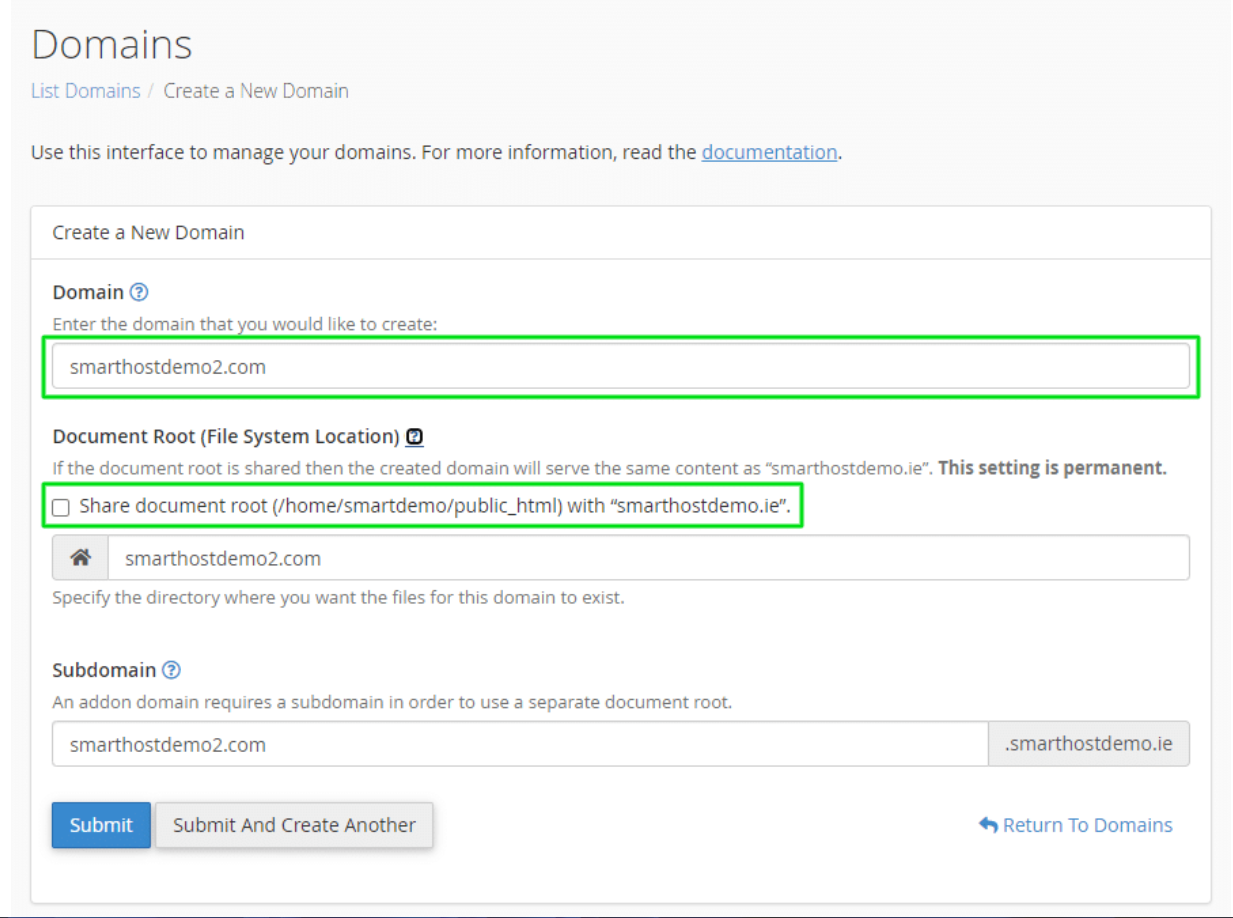
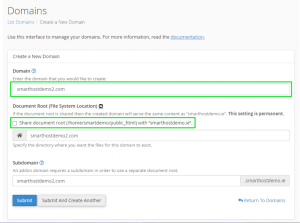
4. Fill in the form — this is the important part
Enter the new domain without `http://` or `www`. Example: `newbrand.com`.
Then: – Uncheck “Share document root … with [your main domain]”. –
Leave the suggested Document Root (usually something like `newbrand.com` or `public_html/newbrand.com`) unless you have a reason to change it.
Leave the auto-generated Subdomain field alone. cPanel creates a hidden technical subdomain in the background; visitors never see it.
That unchecked box is what makes this an addon domain instead of an alias.
The setting is permanent for that domain, so get it right the first time.
5. Click Submit Wait a few seconds.
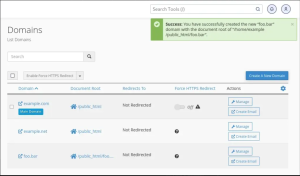
You should see a success message and the new domain in the list, with its own document root. It can take up to about five minutes for Apache to finish wiring it up.
If your host still shows the old “Addon Domains” page
Some older themes or delayed updates still have a dedicated Addon Domains icon.
The idea is the same:
1. Open Addon Domains.
2. Enter the new domain name.
3. Accept (or customize) the auto-filled Subdomain and Document Root.
4. Optionally create a dedicated FTP account.
5. Click Add Domain. Functionally this does the same thing as unchecking “Share document root” in the new interface.
After the domain is added
Upload the website files
cPanel creates a folder for the new site. Open File Manager, go to that document root, and upload `index.html`, WordPress, or whatever you use.
Do not dump files into `public_html` (that is your main site). Always check the Document Root column on the Domains page if you’re unsure.
You can also use FTP. If you created a dedicated FTP account during setup, log in with that user; the session starts in the addon folder automatically.
Point DNS (if you haven’t already)
Two common approaches:
Nameservers (simplest if the host manages DNS)
At your registrar, set the nameservers to the ones your host gave you (often `ns1.yourhost.com` and `ns2.yourhost.com`). After propagation, cPanel’s zone is used automatically.
A records only (if you use Cloudflare or keep DNS at the registrar)
Create: – `@` → your server IP
`www` → same IP (or a CNAME to the root)
Propagation is usually minutes to a few hours, sometimes up to 24–48 hours.
SSL certificate
Once the domain resolves to your server, AutoSSL (Let’s Encrypt) normally issues a certificate within a few hours.
You can also force it from SSL/TLS Status in cPanel. Until that happens, the site may show a browser warning.
You can create mailboxes like `[email protected]` from Email Accounts.
They live on the same server as your main domain but look independent to users.
Common problems and quick fixes
The new domain shows the main website
You left “Share document root” checked.
Remove the domain and add it again with the box unchecked. (Changing document root later is possible via **Manage**, but starting over is cleaner.)
The domain doesn’t load at all
DNS is wrong. Compare `dig +short newbrand.com A` with the IP shown in cPanel. They must match.
Files uploaded but the site is empty or shows the wrong page
You’re in the wrong folder. Confirm the Document Root on the Domains list, then upload there.
WordPress in a subfolder of public_html acts strangely
Hosting an addon site *inside* `public_html` can clash with the main site’s `.htaccess`.
Many hosts recommend a folder like `newbrand.com` at the account root (or a dedicated path your host allows). Follow your host’s default suggestion unless you know why you’re changing it.
SSL never appears
The domain must resolve to this server first. AutoSSL will not issue a cert for a name that still points elsewhere.
FAQ
Does an addon domain need its own hosting plan?
No. That’s the point. It shares disk, bandwidth, and the same cPanel login.
Can I give a client their own cPanel for an addon domain?
Not really. Addon domains share one control panel.
If a client needs isolation, convert the addon to a full account in WHM (reseller/root only) or put them on a separate plan.
Will search engines treat it as a separate site?
Yes, if the content is unique and the domain is the one in the address bar. Don’t duplicate your main site.
Can I add as many as I want?
Only up to the limit on your package. Check the quota on the Create a New Domain screen. —
That’s the whole workflow: register the name, point DNS, create the domain with Share document root unchecked, upload files to the new folder, wait for SSL.
Do those four things in order and the second site will behave like it has its own hosting account — without the extra bill.